Talkdesk
On Talkdesk, an appointment is routed to an agent through a Digital Connect interaction. This means you will have to setup the Digital Connect integration in Talkdesk to support this flow. Please contact Talkdesk support to enable 'Digital Connect' for your organization.
Once the Digital Connect integration is available, you can follow our step-by-step guide and create a touchpoint ID in Talkdesk.
Appointment settings
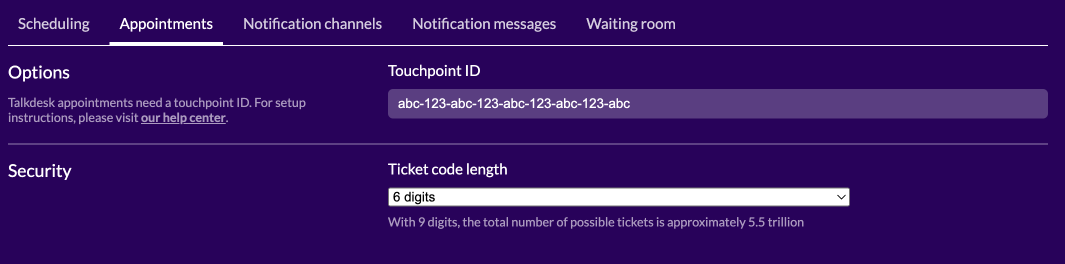
Once you have the touchpoint ID available, navigate to the Auvious settings and access the 'Call Scheduling' section. If 'Scheduling for agents' is disabled, enable it, then proceed to the 'Appointments' tab. Enter the Touchpoint ID in the designated field and click 'Save'.
Notification channels
Currently, the only available notification channel for Talkdesk is Webhooks. To receive appointment-specific notifications, you'll need to set up a Webhook subscription. Check out our Webhooks settings page to discover how to establish your own webhook subscriptions.
Notification messages
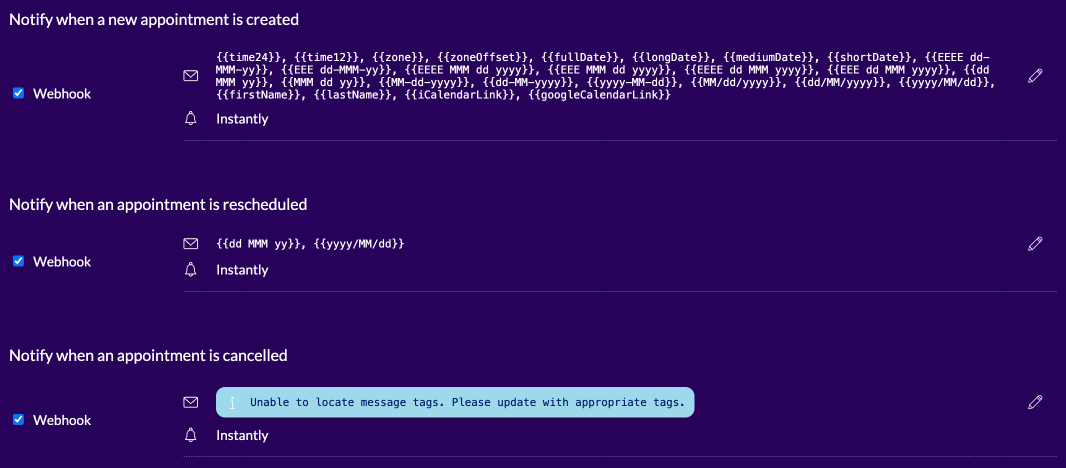
Once you've activated the Webhooks channel, you can customize which events trigger webhook notifications and specify the appointment-specific data included in each request.
To do this, navigate to each notification message and choose one or more message tags. These tags will then accompany the appointment-specific data within the webhook request.
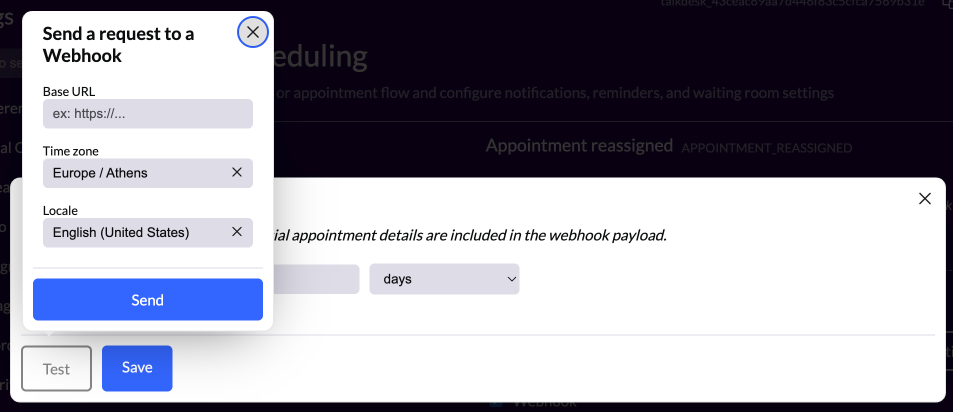
You can also verify the webhook notification by sending a test request to your preferred test URL.
Studio Flow incoming arguments
When a customer starts an appointment conversation, Auvious sends a custom properties payload when creating the Talkdesk conversation. Talkdesk Studio Flow receives these properties as Incoming Message variables.
The payload includes:
auvious_appointment_id: The id of the specific appointmentauvious_conference_id: The id of the conference. Can also be referred to asroomNamein the interaction metadata.talkdesk_agent_id: Agent identifier when available (optional)
It also includes dynamic key/value pairs from:
- Appointment
interaction.customFields - Appointment metadata
- Contact metadata
Any dynamic key (for example my_custom_property) is passed through and can be used in Studio Flow conditions, routing, and variable mapping.
Please note that dots(.) are not allowed in the name of an Incoming Message Variable. You should use underscore (_) instead.
- Not allowed:
my.custom.property - Allowed :
my_custom_property